How to install Discord on Deepin OS 20.7 or any other Debian-based distro

I'm a passionate software developer.
Topic
How to install Discord on Deepin OS 20.7 or any other Debian-based distro
Check your OS
You can try one of the following approaches.
lsb_release
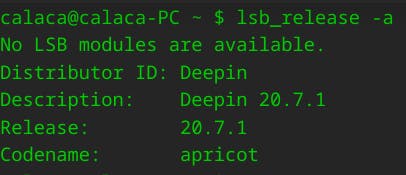
The command "lsb_release -a" is used to display information about the Linux Standard Base (LSB) and distribution-specific information of your Linux system.
The "lsb_release" command is useful for identifying the distribution and its version in a standardized manner, particularly if you are writing scripts or need to retrieve distribution information programmatically.
lsb_release -a
The output should be something like this
No LSB modules are available.
Distributor ID: Deepin
Description:    Deepin 20.7.1
Release:        20.7.1
Codename:       apricot
os-release
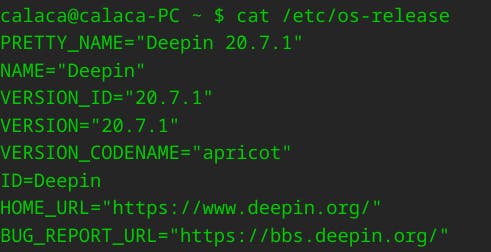
The command cat /etc/os-release is used to display the contents of the "/etc/os-release" file, which contains information about the operating system distribution.
The "/etc/os-release" file is commonly used by various system utilities and scripts to determine the distribution and retrieve specific information about the operating system.
In the terminal
cat /etc/os-release
Your output should be something like the following:
PRETTY_NAME="Deepin 20.7.1"
NAME="Deepin"
VERSION_ID="20.7.1"
VERSION="20.7.1"
VERSION_CODENAME="apricot"
ID=Deepin
HOME_URL="https://www.deepin.org/"
BUG_REPORT_URL="https://bbs.deepin.org/"
Debian-based distro
In the terminal
cat /etc/debian_version
Output
10.10

Update the system
In the terminal
sudo apt update
When it gets done, go to the following:
sudo apt upgrade
Download Discord
In the terminal:
wget "https://discord.com/api/download?platform=linux&format=deb" -O discord.deb
The wget command is used to download files from the internet using various protocols such as HTTP, HTTPS, FTP, and more.
It is a versatile tool for downloading files and automating file retrieval tasks from the command line.
-O discord.deb option specifies the output filename for the downloaded file. In this case, it will save the downloaded file as discord.deb on your local machine.
Output

Install Discord
Make sure you are in the same directory where you downloaded the "discord.deb" file before running this command.
In the terminal:
sudo apt install ./discord.deb
The apt command is a package management tool commonly used in Debian-based Linux distributions, including Deepin OS. It allows you to manage software packages, install, upgrade, and remove them, as well as resolve dependencies.
./ refers to the current directory, and discord.deb specifies the name of the package file you want to install. In this case, it refers to the discord.deb file you previously downloaded.
So, when you execute the sudo apt install ./discord.deb command, apt will attempt to install the Discord package from the "discord.deb" file located in the current directory.
Troubleshooting
Download is performed unsanboxed
After using the installation command, I ran into the following issue:
N: Download is performed unsandboxed as root as file '/home/calaca/discord.deb' couldn't be accessed by user '_apt'. - pkgAcquire::Run (13: Permission denied)

Instead of copying and pasting, I wrote the same command again, using the tab key in order to find the file.
Error: net::ERR_CONNECTION_RESET
After re-running the installation command, I ran into the following issue:

I just ignored and I moved on.
Double-check installation
You can choose one of the following options.
Which
The "which" command in Linux is used to locate the executable file associated with a given command or program. It helps you determine the path to the binary file that will be executed when you run a particular command.
When you run the "which" command followed by the name of a command, it searches the directories listed in the "PATH" environment variable to find the corresponding executable file.
In the terminal
which discord
Output
/usr/bin/discord

dpkg
The "dpkg -s" command is useful for checking the status of a specific package, verifying its installation, and retrieving detailed information about it, including its version and description.
dpkg -s discord
Output
Package: discord
Status: install ok installed
Priority: optional
Section: net
Installed-Size: 223012
Maintainer: Discord Maintainer Team <native-team@discord.com>
Architecture: amd64
Version: 0.0.27
Depends: libc6, libasound2, libatomic1, libgconf-2-4, libnotify4, libnspr4, libnss3, libstdc++6, libxss1, libxtst6, libc++1
Recommends: libappindicator1 | libayatana-appindicator1
Description: Chat for Communities and Friends
 Discord is the easiest way to communicate over voice, video, and text. Chat,
 hang out, and stay close with your friends and communities.
Homepage: https://discord.com

Run
discord & disown
`discord` is the command to launch the Discord application.
The "&" symbol at the end of the command tells the shell to run Discord in the background, allowing you to continue using the terminal.
"disown" is used to detach the Discord process from the terminal session. This prevents the process from being terminated when you close the terminal.
After running this command, Discord should launch in the background, and you can continue using the terminal for other commands without Discord's output or messages interfering.
Be happy
You got here. Way to go!

Let's become business friends
Final thoughts
I hope this article helped you. Let me know if you have any questions. Your thoughts, suggestions and corrections are more than welcome. By the way, feel free to drop your suggestions on new blog articles.
Hope to see you next time.


